Jump to an article or press Enter to search all help pages.
Publish on your store
The third step after creating a quiz and adding products, is publishing the Face Age on your store.
- Initialize & Publish: Finish the setup wizard before customizing templates or storefront extensions.
- Display Modes:
- Modal: Adds a Face Age logo to all pages. Customize the logo in the Template tab.
- Activate: Go to Online Store > Themes > Customize > App embeds > Activate Skin Analyzer Popup.
- Section: Adds the Face Age analyzer to your homepage as a section.
- Activate: Go to Online Store > Themes > Customize > Section > Add Section > Select Skin Analyzer.
- Modal: Adds a Face Age logo to all pages. Customize the logo in the Template tab.
- You can switch between display modes at any time.
- Storefront extensions: Optional theme blocks after you publish. Product Insight is product-page only.
Initialize & Publish
The Initialize and Publish workflow walks you through going live. Complete this process first — before customizing templates or storefront extensions.
- Cleaner interface design
- Better guidance during setup
- Simplified publishing process
- Improved overall usability
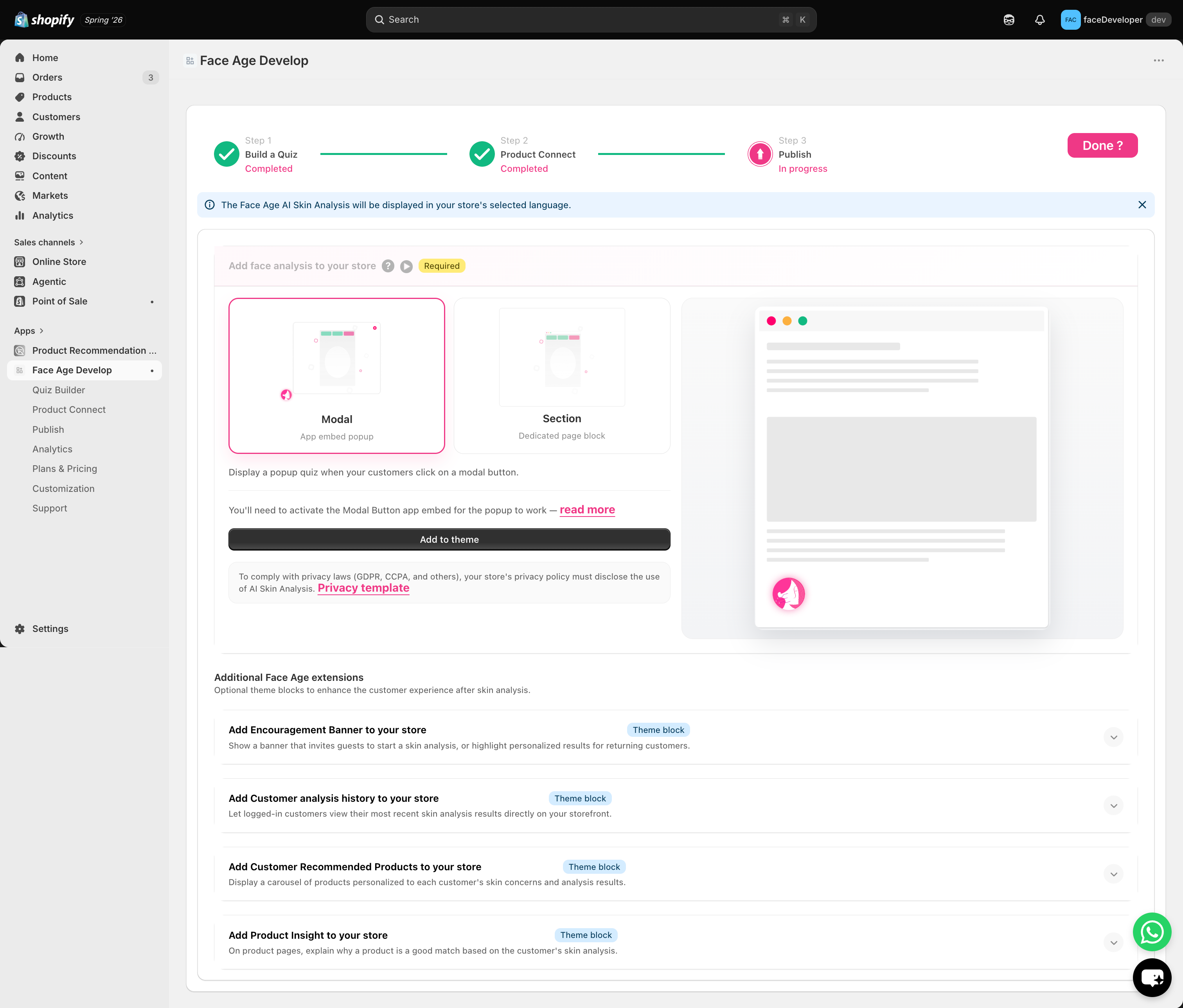
In the publish section, you can choose how Face Age will appear on your website.
Generally, there are two display modes: Modal and Section.
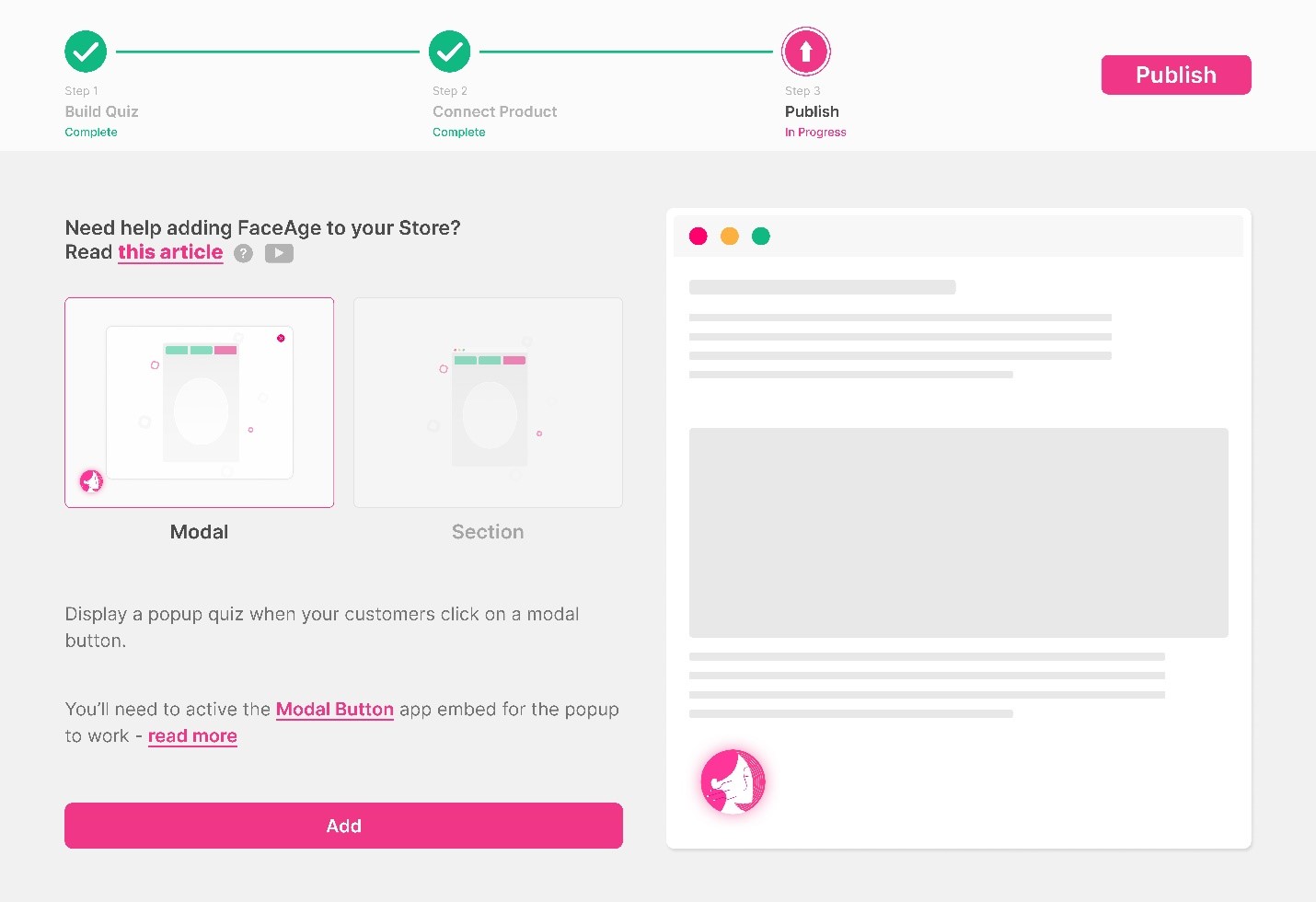
Modal Mode
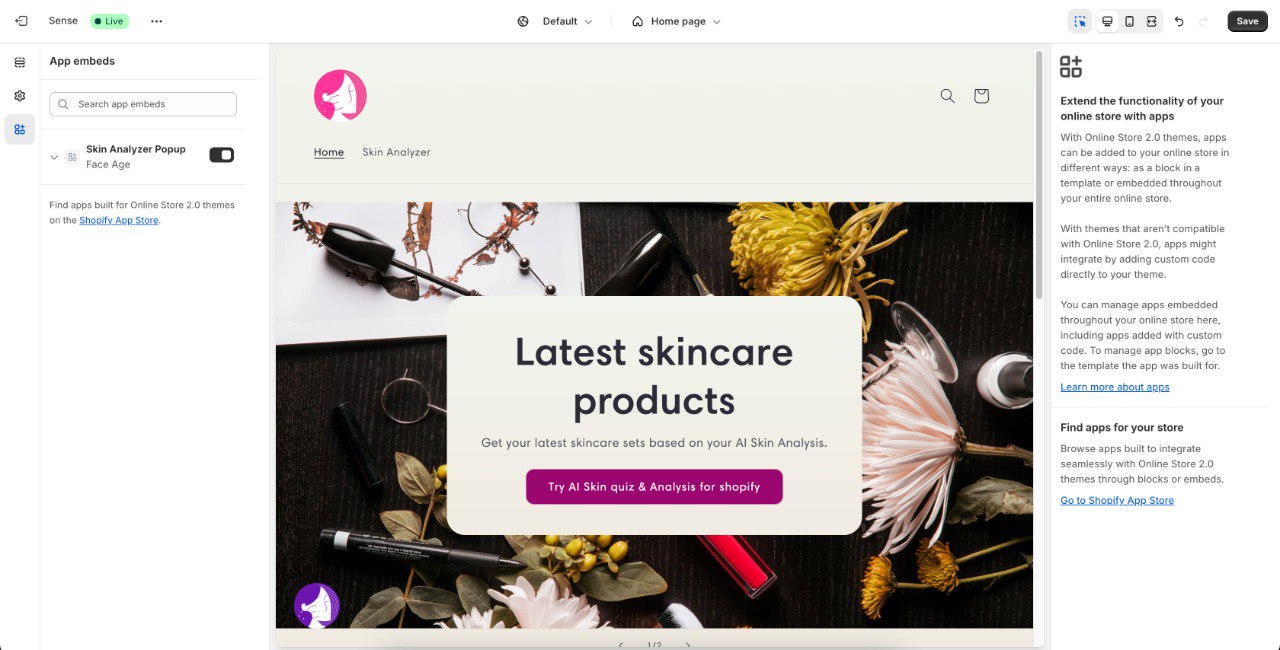
By selecting the Modal mode, a Face Age logo will be added to all of your pages. You can customize the logo in the Template tab of the Customization section.
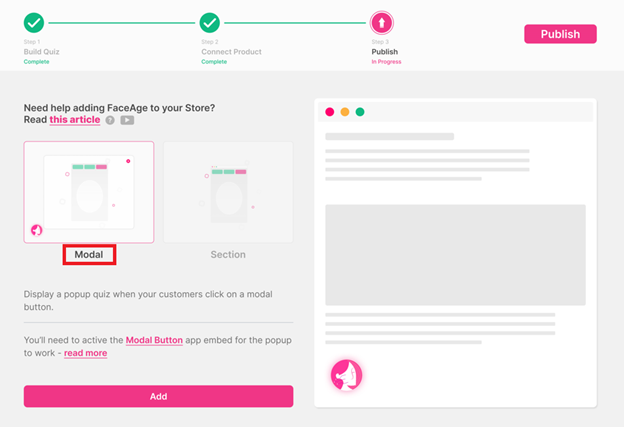
To activate this mode:
- Go to Online Store > Themes > Customize.
- Go to the App embeds.
- Activate Skin Analyzer Popup.
Section Mode
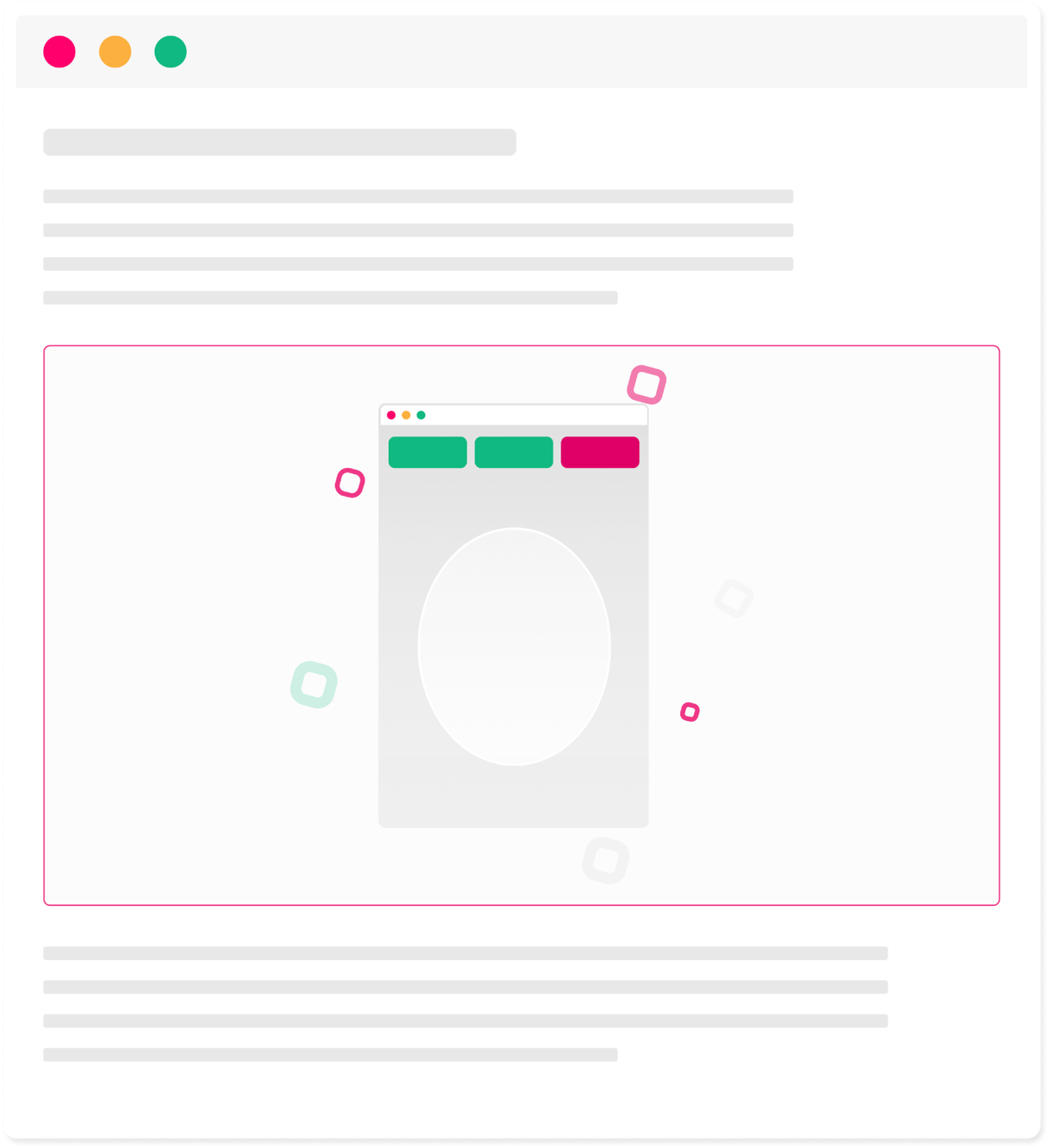
In the Section mode, the Face Age analyzer will be added as a section to your homepage.
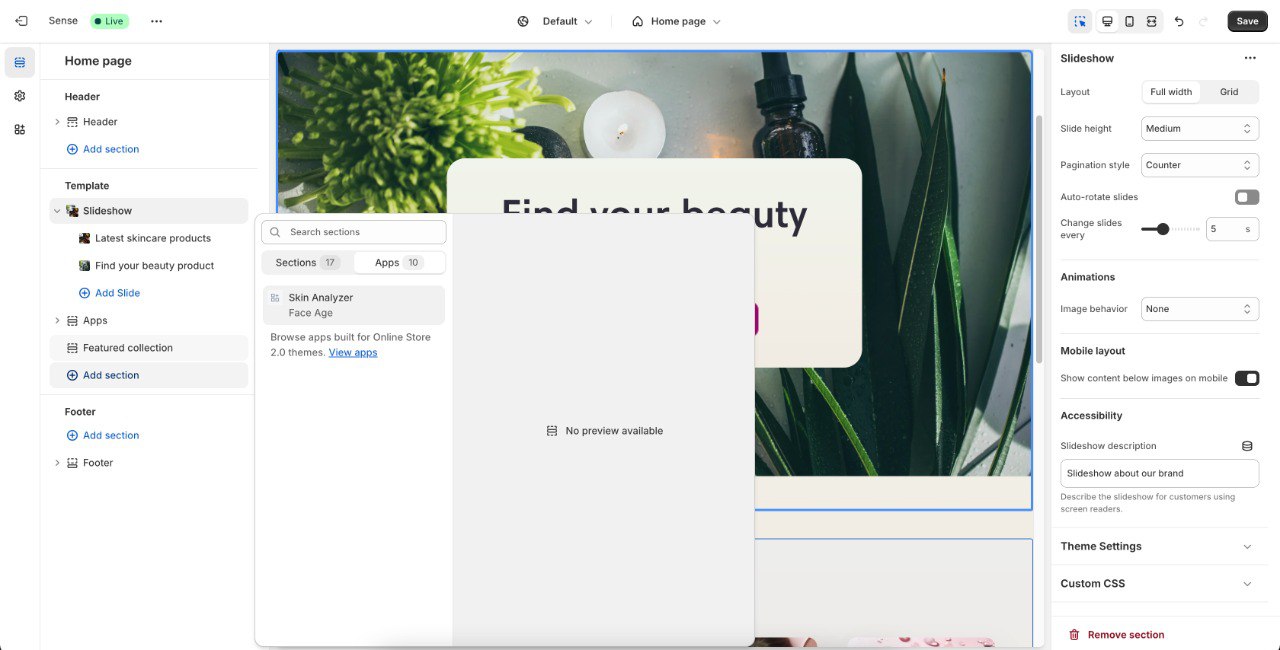
To activate this mode:
- Go to Online Store > Themes > Customize.
- Go to the Section (It’s selected as default).
- In the Template, select add section.
- Select Skin Analyzer.
- Configure it like other sections, if needed.
You can change Face Age mode in your store whenever you want.
Storefront extensions
After Face Age is live as a modal or section, you can add optional theme blocks for a more personal storefront. These do not replace Initialize & Publish — they sit on top of it.
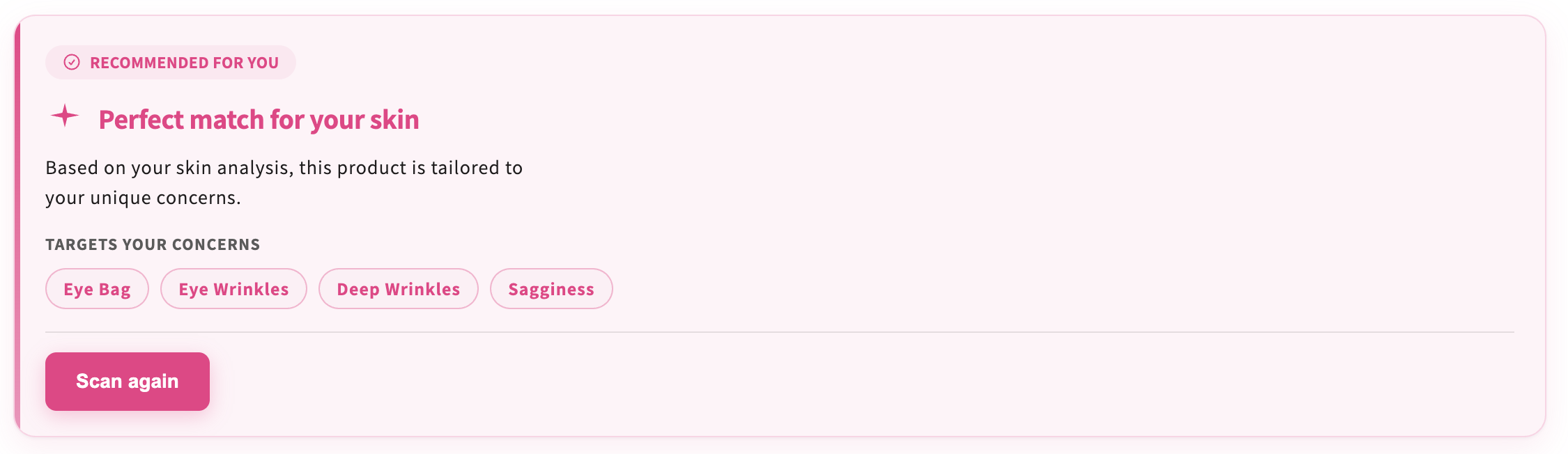
Product Insight Product page only
On a product page, this block shows whether the item matches the customer’s skin analysis, which concerns it targets, and a Scan again action. Add it only to a product template — it is not for the homepage or collections.
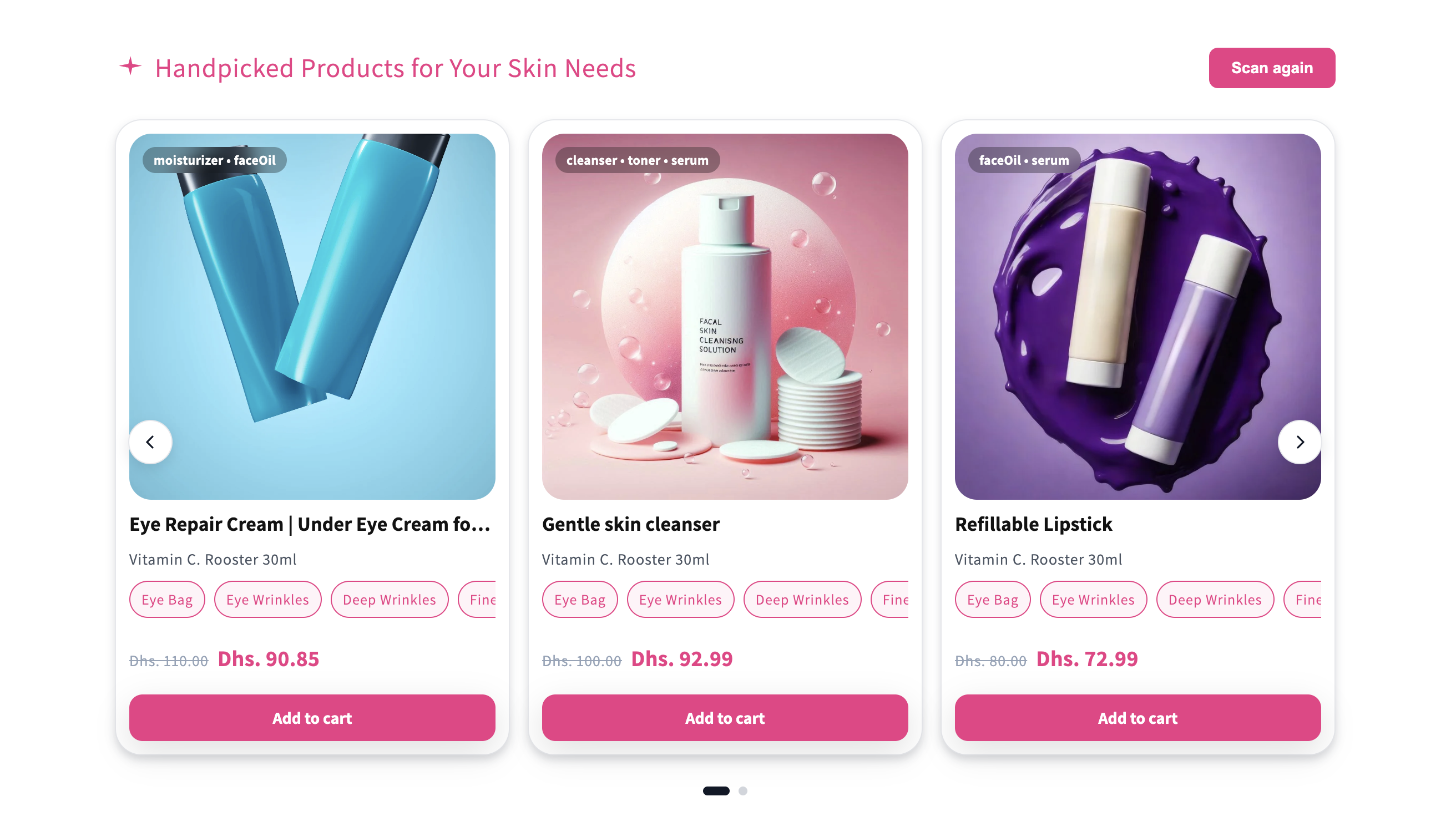
Customer Recommended Products
A carousel of products matched to the customer’s latest scan, with concern tags, price, and Add to cart. Place it on the homepage, collections, or next to analysis results.
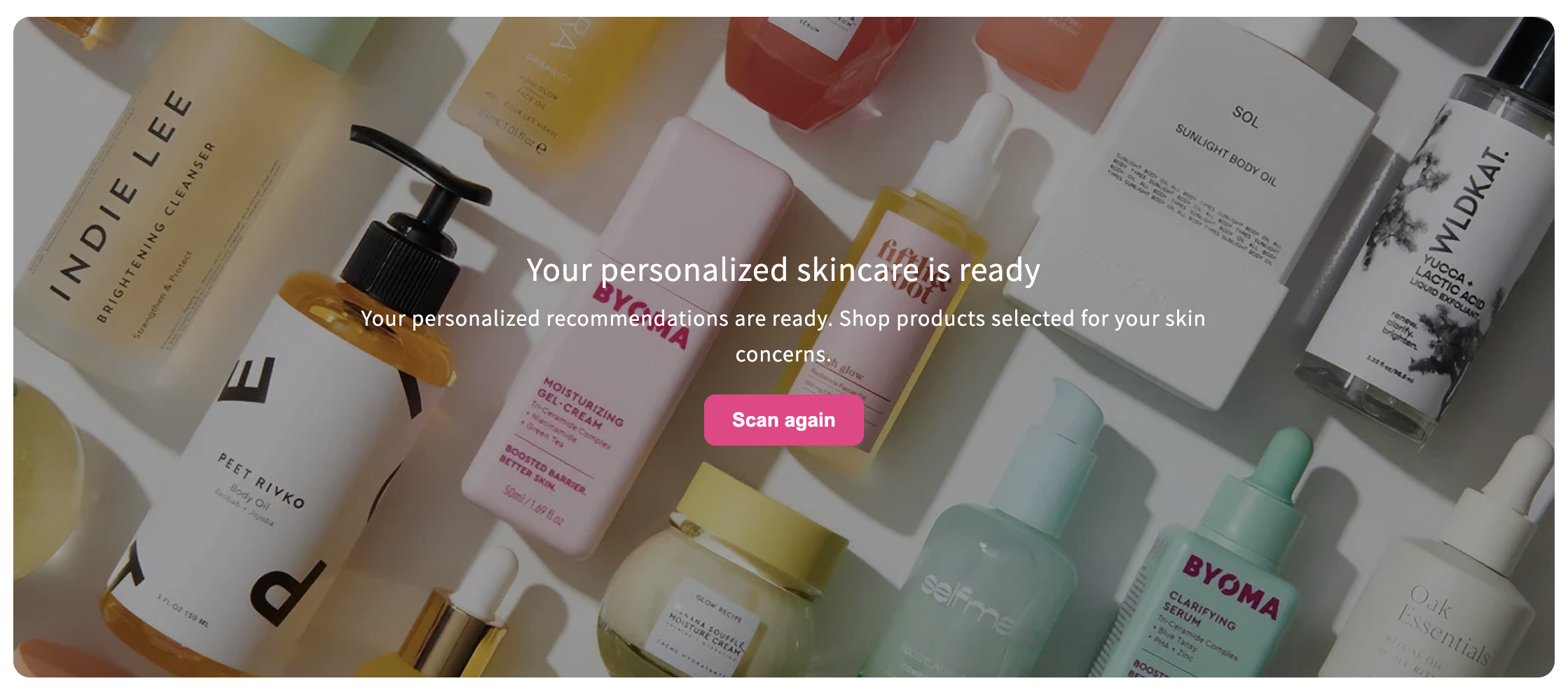
Encouragement Banner
A banner that tells customers their personalized routine is ready and invites them to scan again or shop recommended products.
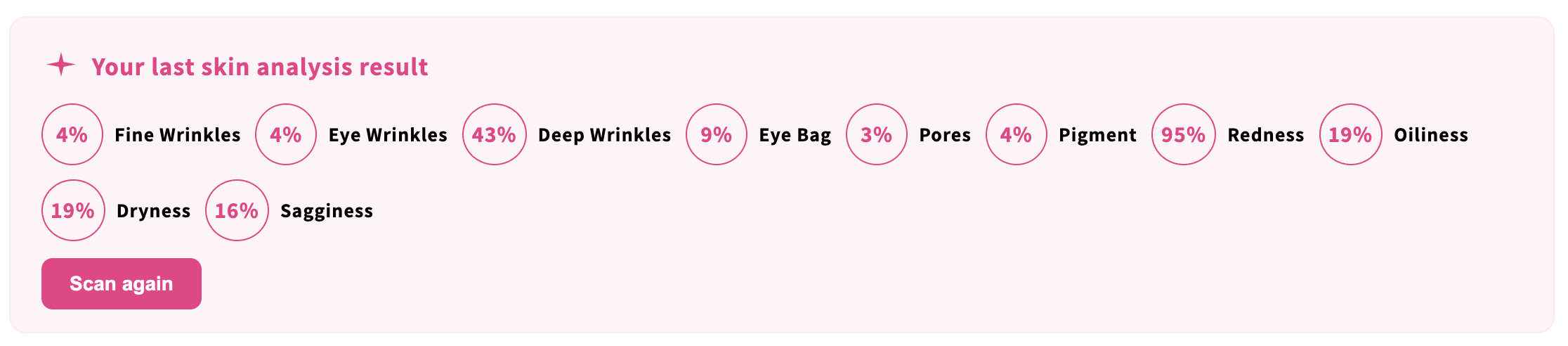
Customer Analysis History
Shows the last analysis scores (wrinkles, pores, redness, and more) so returning customers can pick up where they left off.
Full placement steps are in Storefront extensions.
Why Is the Face Age App Not Displaying Correctly on My Shopify Store?
If the Face Age AI Skin Analysis App isn’t showing properly on your Shopify store, it may be due to a few common issues. Here’s how to troubleshoot and fix them:
1. App Code Not Fully Installed or Loaded
- Ensure that the app has been correctly installed from the Shopify App Store.
- If you recently installed it, try refreshing your theme cache or switching to a different browser to check if the issue persists.
2. Theme Compatibility Issues
- Some Shopify themes may block or interfere with certain app scripts.
- Try switching to a default Shopify theme (e.g., Dawn) and see if the app appears correctly.
3. Old or Conflicting Code from Previous Apps
- If you’ve previously installed similar apps, their leftover code might be conflicting with Face Age.
- Use Chrome DevTools Console (
Cmd + Opt + Jon Mac orCtrl + Shift + Jon Windows) to check for errors related to the app. ( More information )
4. JavaScript Errors or Missing App Blocks
- If there are JavaScript errors on your site, they might be preventing the app from loading.
- Check if the app’s block has been added to the correct page in your Shopify theme editor.
5. App Embed Not Enabled
- In Online Store > Themes > Customize, go to App Embeds and make sure Face Age is enabled.
6. Browser Cache & Cookies
- Clear your browser cache or try accessing your store in incognito mode to see if the issue is cache-related.
7. Shopify App Uninstall/Reinstall Process
- If the app isn’t loading after troubleshooting, try uninstalling and reinstalling it to reset any misconfigurations.
- After reinstalling, refresh your store and test again.
Most Common: Javascript Errors!
Over time, website customizations and the installation or removal of third-party apps can introduce code misconfigurations and server errors. On Shopify, many of these issues stem from old or broken app code. When you uninstall an app, it doesn’t always remove all of its code from your theme—our optimization scans often reveal remnants of uninstalled apps still loading on sites.
Detecting Errors Using Chrome DevTools
You can identify these errors using Chrome DevTools. Open the Console tab, where you might see messages like:
- Old app code still loading on your site
- Broken file paths
- Typos in your code
- Misconfigured apps or scripts
How to Open the Console in Chrome
- On Mac: Press
Command + Option + J - On Windows: Press
Control + Shift + J
Your console might look different depending on your settings. but here’s an example of what you might find:
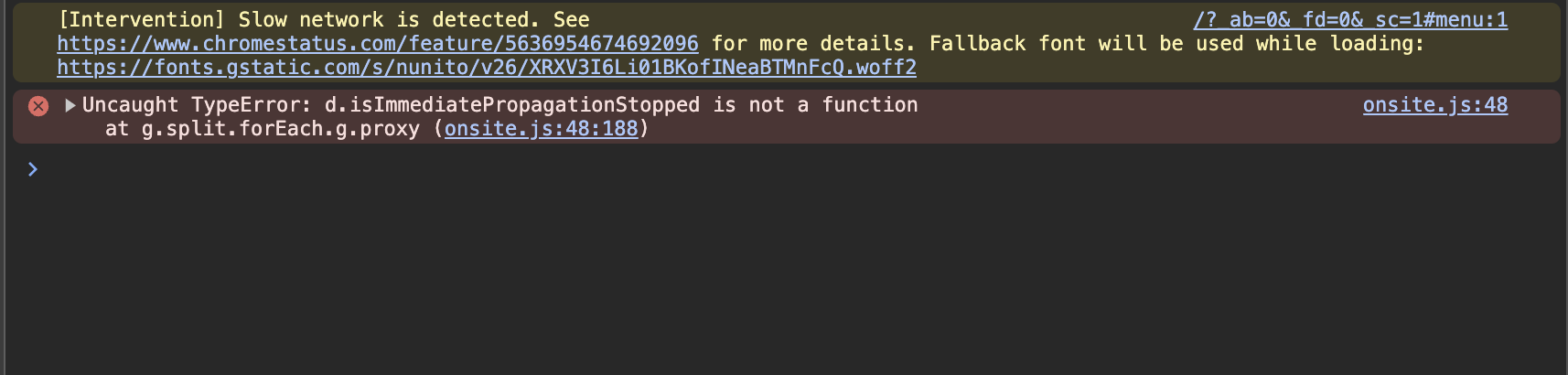
Example: Debugging Console Errors
- Code Typos
- If you see syntax errors, click on the file source (e.g.,
index.js) to open the Sources tab. - Look for missing or extra characters (like an empty object
{}) that may be causing the issue. - The problem could stem from a Shopify Liquid variable that is either empty or mistyped.
- If you see syntax errors, click on the file source (e.g.,
- Missing Resources
- Some errors might show a failed resource load, pointing to an external domain (e.g.,
bam.nr-data.net). - This typically happens when an app was removed but its scripts were not.
- To fix it, investigate which app the resource belongs to and contact the app developer for guidance.
- Some errors might show a failed resource load, pointing to an external domain (e.g.,
Why This Matters for Performance
Unresolved errors can slow down your site by loading unnecessary resources or breaking functionality. Keeping your site free of JavaScript and server errors ensures smooth performance and a better user experience.
Need Help?
If you’ve tried these steps and the issue persists, contact our support team by submitting ticket on your Shopify App Admin —we’ll help you troubleshoot and get the app running smoothly!