
Jump to an article or press Enter to search all help pages.
Analysis badges
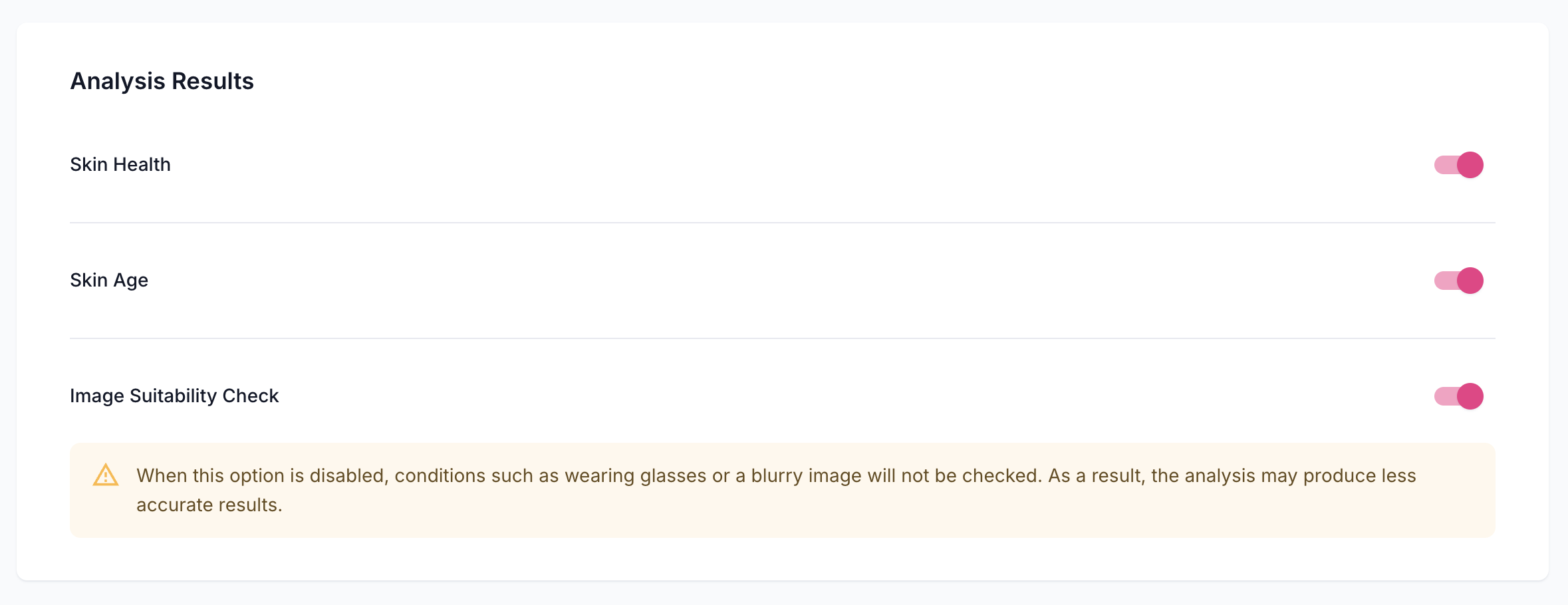
Face Age lets you customize the information shown on the Analysis Results page by selecting which analysis badges are displayed. That gives you control over the customer experience and lets you highlight the metrics most relevant to your products and brand.
Available analysis badges
Skin Age
Displays the customer’s estimated skin age based on the uploaded facial image. Recommended for stores that focus on anti-aging skincare products.
Skin Health
Provides an overall evaluation of the customer’s skin condition. Recommended for stores offering general skincare solutions.
Image Suitability Check
Indicates whether the uploaded photo meets the quality requirements needed for an accurate analysis. Helps customers understand when lighting, camera angle, or image quality may affect results.
How to configure analysis badges
- Open your Shopify Admin.
- Navigate to Apps → Face Age.
- Open Customization.
- Select Template.
- Go to the Analysis result section.
- Enable or disable the badges you would like to display.
- Click Save.
Where to find it
Shopify
└── Apps
    └── Face Age
        └── Customization
            └── Template
                └── Analysis Results
Recommended badge configuration
| Badge | Recommended for |
|---|---|
| Skin Age | Anti-aging skincare stores |
| Skin Health | General skincare brands |
| Image Suitability Check | Stores that want to improve photo quality before analysis |
Tips
- Displaying fewer badges creates a cleaner and simpler customer experience.
- If your products focus primarily on anti-aging, displaying only the Skin Age badge can help customers stay focused on your primary recommendation.
- Keeping the Image Suitability Check enabled can reduce inaccurate results caused by low-quality photos.